Prompd IDE
Professional Electron IDE for composable AI prompts with three powerful editing modes.
Two Editing Modes
Section titled “Two Editing Modes”Choose the editing experience that fits your workflow. Switch between modes instantly.
Design View
Section titled “Design View”Most popular - Split view combining visual forms with content editors.
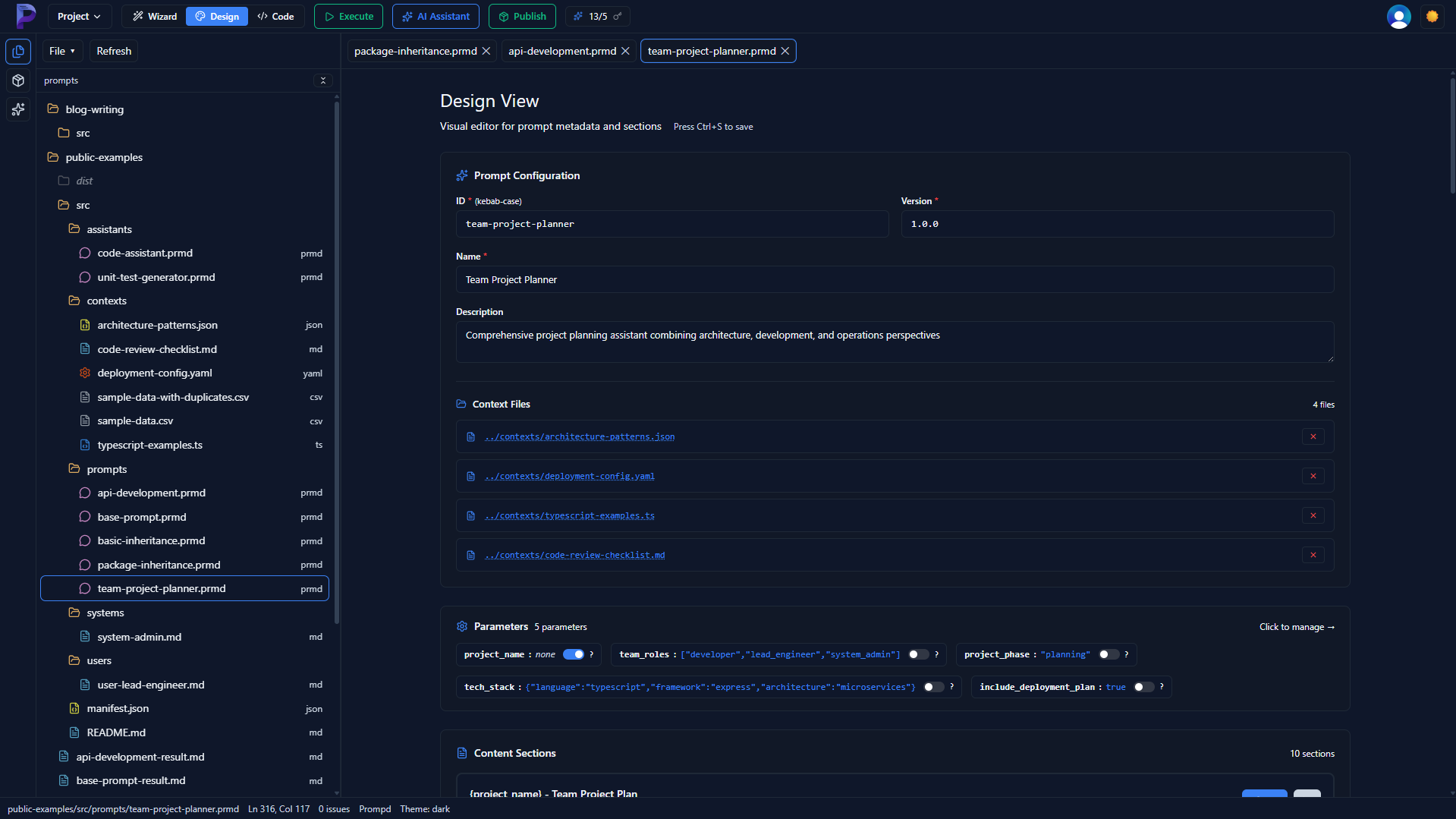
Features:
- Metadata forms + content editors
- Section editors (system, user, context)
- Parameter management panel
- Live validation feedback
Perfect for: Quick edits, mixed visual/text editing, daily prompt development.
Code Mode
Section titled “Code Mode”Advanced users - Full Monaco editor with VS Code-level features.
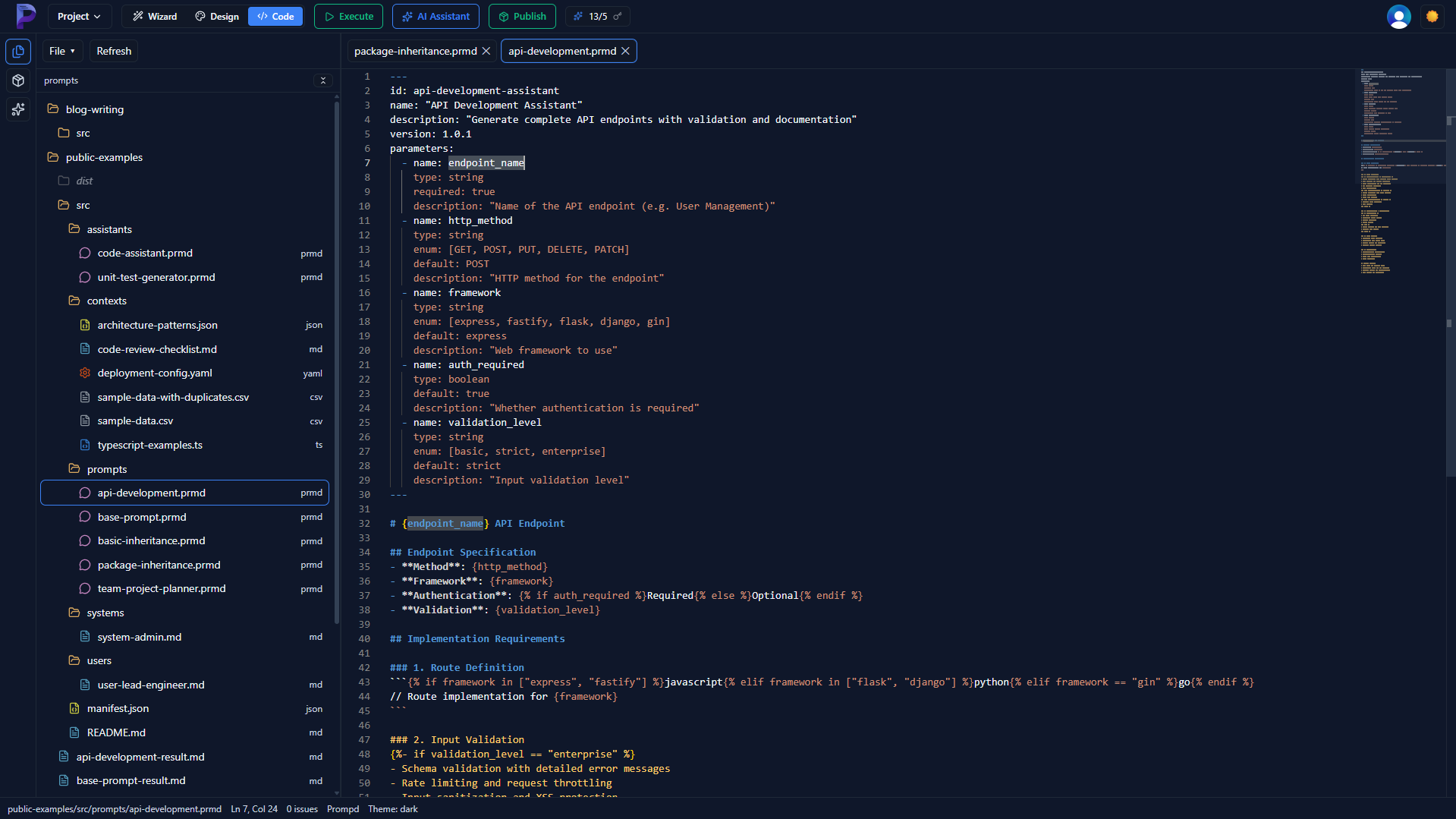
Features:
- Full Monaco editor (VS Code engine)
- YAML + Markdown syntax highlighting
- IntelliSense and auto-completion
- Jump to definition
Perfect for: Advanced users, complex logic and conditionals, fine-grained control.
Interface Layout
Section titled “Interface Layout”The editor is organized into three main areas:
- Header Bar - File name, mode toggle, theme switcher, save/publish buttons
- Activity Bar - Explorer, Packages, AI Chat - quick access to all tools
- Main Editor - Multi-tab workspace with your chosen editing mode
Key Features
Section titled “Key Features”File Explorer
Section titled “File Explorer”- Browse workspace folders
- Create new
.prmdfiles - Drag and drop file references
- Right-click context menus
Package Manager
Section titled “Package Manager”- Search the prompdhub.ai registry
- Browse installed packages
- Use packages as templates
- View package documentation
AI Assistant
Section titled “AI Assistant”- Generate prompts from descriptions
- Edit active files with AI
- Search and discover packages
- Context-aware suggestions
Live Execution
Section titled “Live Execution”- Test prompts with live API calls
- Support for OpenAI, Anthropic
- View formatted responses
- Save execution history
Publishing to Registry
Section titled “Publishing to Registry”Share your prompts with the community in 3 steps:
- Create manifest.json - Define package name, version, and files to include
- Click Publish button - Review selected files and package metadata
- Package published - Instantly available via
prompd install @your/package
Example manifest.json
Section titled “Example manifest.json”{ "name": "@myusername/my-package", "version": "1.0.0", "description": "My awesome prompt package", "main": "main.prmd", "files": ["main.prmd", "templates/*.prmd"]}Keyboard Shortcuts
Section titled “Keyboard Shortcuts”File Operations
Section titled “File Operations”| Action | Shortcut |
|---|---|
| Save file | Ctrl/Cmd + S |
| Open file | Ctrl/Cmd + O |
| New file | Ctrl/Cmd + N |
| Close tab | Ctrl/Cmd + W |
Navigation
Section titled “Navigation”| Action | Shortcut |
|---|---|
| Command palette | Ctrl/Cmd + Shift + P |
| Next tab | Ctrl + Tab |
| Previous tab | Ctrl + Shift + Tab |
| Toggle sidebar | Ctrl/Cmd + K |
Execution
Section titled “Execution”| Action | Shortcut |
|---|---|
| Execute prompt | Ctrl/Cmd + E or F5 |
Settings
Section titled “Settings”| Action | Shortcut |
|---|---|
| Open settings | Ctrl/Cmd + , |
Getting Started
Section titled “Getting Started”- Download Prompd for your platform (coming soon)
- Open a workspace folder (File > Open Folder)
- Start with Design View to create your first prompt
- Browse Package Panel for templates and examples
- Use AI Chat for help and prompt generation