prompd.app Editor Guide
Professional Electron IDE for composable AI prompts with three powerful editing modes.
Coming Soon: prompd.app Desktop IDE for Windows, macOS, and Linux
Three Editing Modes
Choose the editing experience that fits your workflow. Switch between modes instantly.
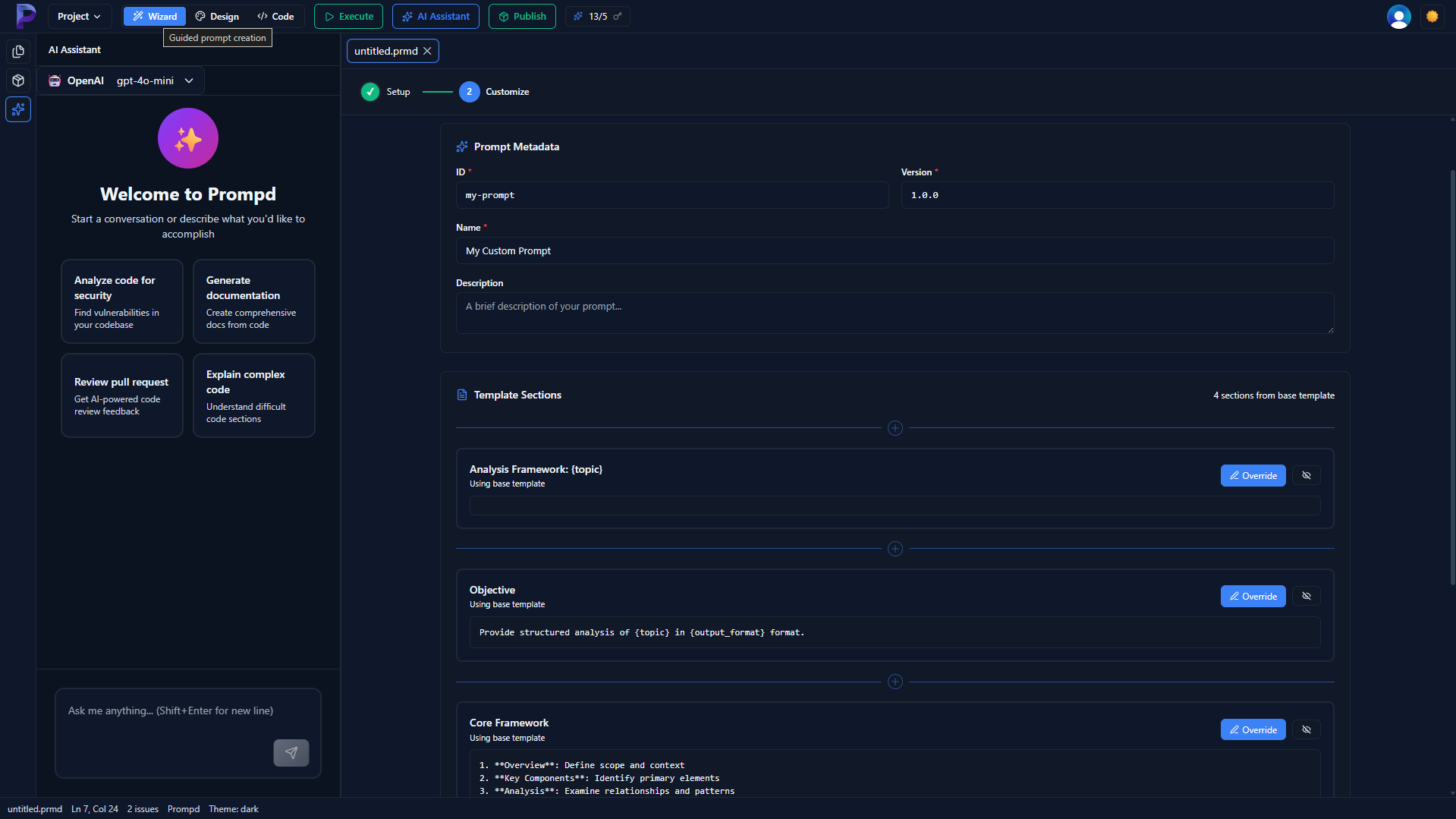
Step-by-step guided prompt creation with visual forms.
Features:
- • Visual forms for metadata
- • Parameter definition UI
- • Content section editors
- • Auto-generates valid .prmd files
Perfect for:
- • First-time users
- • Structured workflows
- • Template-based creation
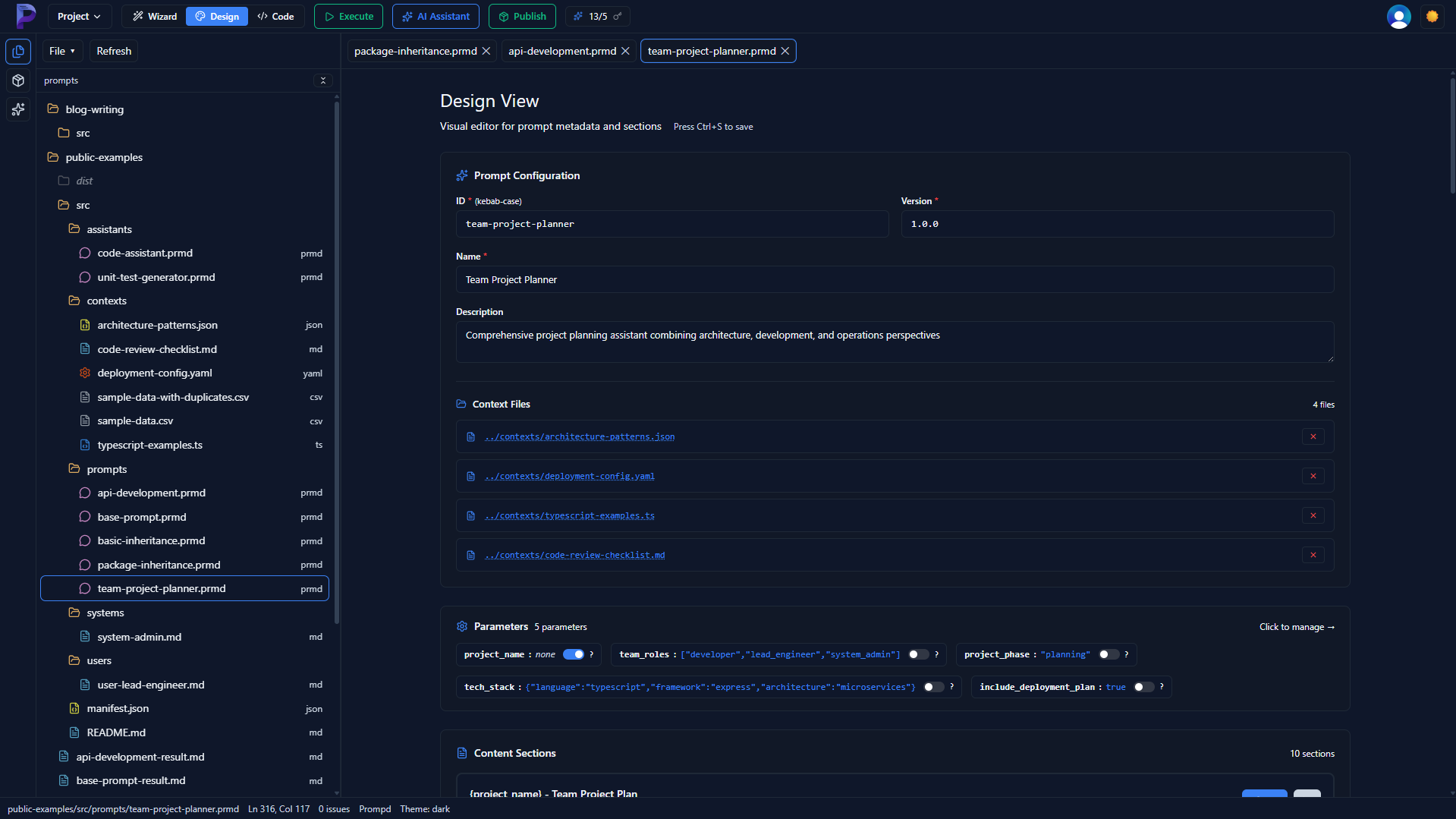
Split view combining visual forms with content editors.
Features:
- • Metadata forms + content editors
- • Section editors (system, user, context)
- • Parameter management panel
- • Live validation feedback
Perfect for:
- • Quick edits
- • Mixed visual/text editing
- • Daily prompt development
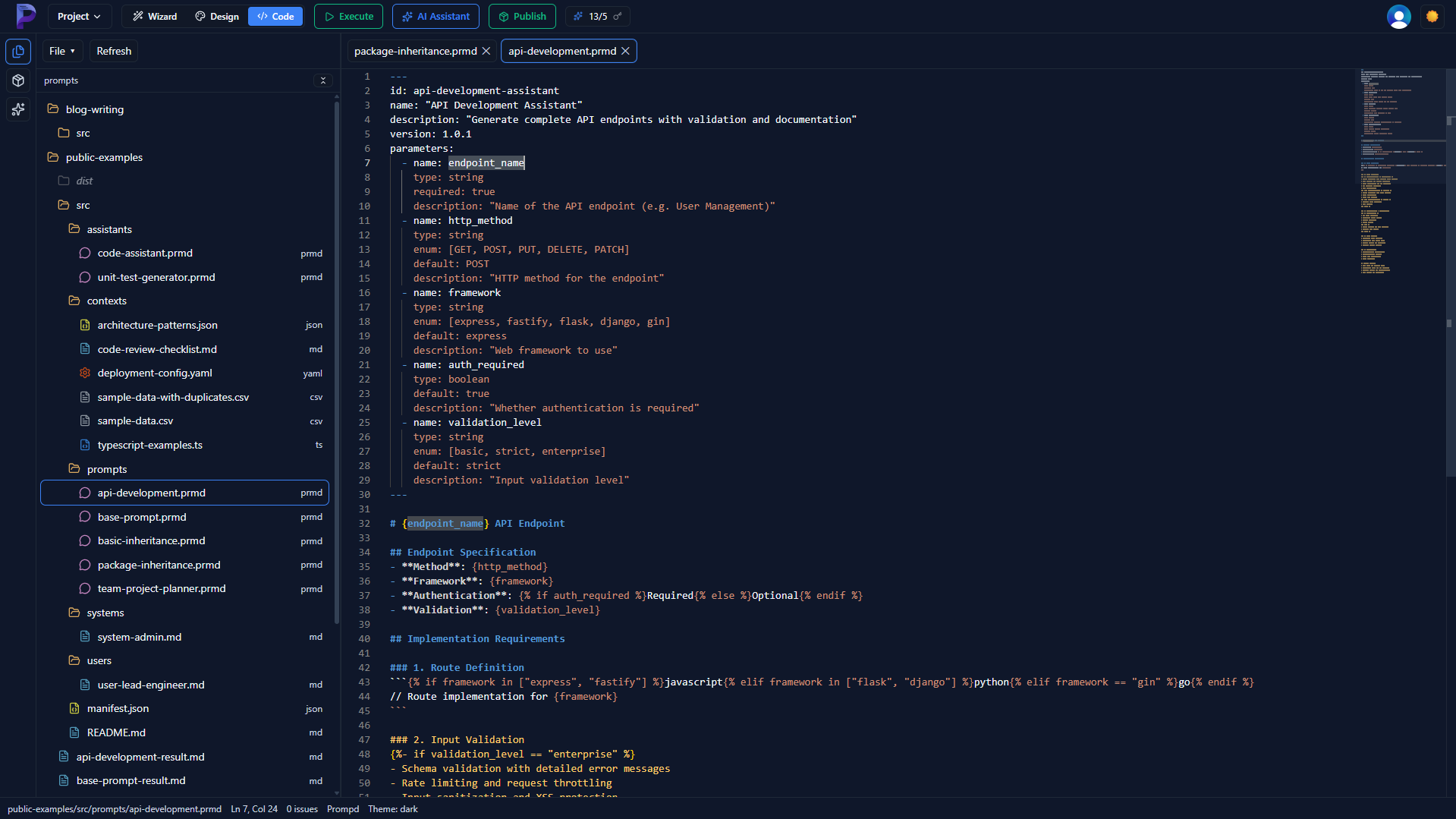
Full Monaco editor with VS Code-level features.
Features:
- • Full Monaco editor (VS Code engine)
- • YAML + Markdown syntax highlighting
- • IntelliSense & auto-completion
- • Jump to definition
Perfect for:
- • Advanced users
- • Complex logic & conditionals
- • Fine-grained control
Interface Layout
Header Bar
File name, mode toggle, theme switcher, save/publish buttons
Activity Bar
Explorer, Packages, AI Chat - quick access to all tools
Main Editor
Multi-tab workspace with your chosen editing mode
Key Features
📁 File Explorer
- • Browse workspace folders
- • Create new .prmd files
- • Drag & drop file references
- • Right-click context menus
📦 Package Manager
- • Search prompdhub.ai registry
- • Browse installed packages
- • Use packages as templates
- • View package documentation
🤖 AI Assistant
- • Generate prompts from descriptions
- • Edit active files with AI
- • Search and discover packages
- • Context-aware suggestions
▶️ Live Execution
- • Test prompts with live API calls
- • Support for OpenAI, Anthropic
- • View formatted responses
- • Save execution history
Publishing to Registry
Share your prompts with the community in 3 easy steps:
Create manifest.json
Define package name, version, and files to include
Click Publish button
Review selected files and package metadata
Package published!
Instantly available via prompd install @your/package
Example manifest.json
{
  "name": "@myusername/my-package",
  "version": "1.0.0",
  "description": "My awesome prompt package",
  "main": "main.prmd",
  "files": ["main.prmd", "templates/*.prmd"]
}
Keyboard Shortcuts
File Operations
Ctrl/Cmd + S Ctrl/Cmd + O Ctrl/Cmd + N Ctrl/Cmd + W Navigation
Ctrl/Cmd + Shift + P Ctrl + Tab Ctrl + Shift + Tab Ctrl/Cmd + K Execution
Ctrl/Cmd + E or F5 Settings
Ctrl/Cmd + , Getting Started
- 1. Download prompd.app for your platform (coming soon)
- 2. Open a workspace folder (File → Open Folder)
- 3. Start with Wizard Mode to create your first prompt
- 4. Browse Package Panel for templates and examples
- 5. Use AI Chat for help and prompt generation